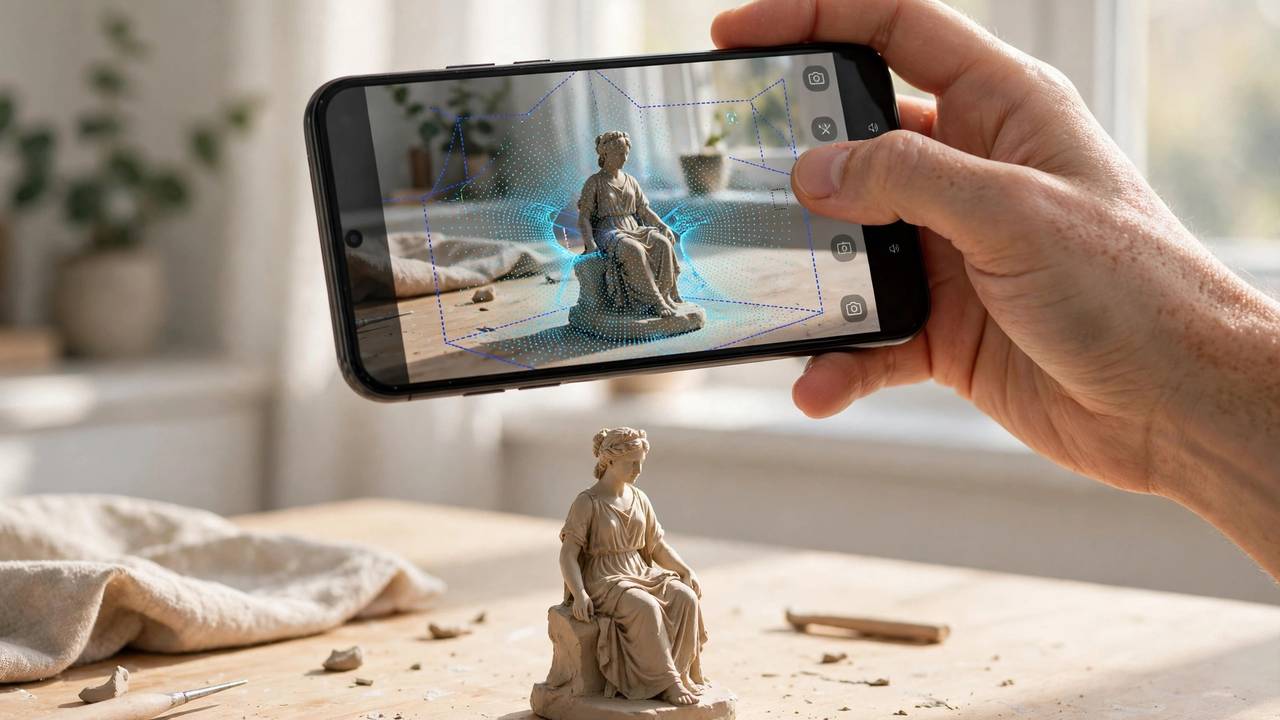
Your phone is already a 3D scanner — you just haven’t used it as one yet. Modern 3D scanning with phone apps can capture real-world objects as digital 3D models using nothing but your camera, and the results are good enough for 3D printing, game assets, product visualisation, and digital archiving. No $5,000 hardware required, no special training — just the phone in your pocket and an hour to learn the workflow.
This guide covers the three apps worth your time in 2026, how each capture method works, and the complete scan-to-print workflow — plus the beginner mistakes that turn promising scans into unusable mush.
3D Scanning with Phone: How It Actually Works
Phone apps use three main capture technologies, and understanding them helps you pick the right tool:
- Photogrammetry: the app takes dozens or hundreds of photos from different angles and reconstructs 3D geometry from the overlaps. Works on any phone, great for textures and small objects, but needs good lighting and struggles with shiny or featureless surfaces.
- LiDAR: available on iPhone Pro models (12 Pro and later), LiDAR fires invisible laser pulses to measure depth directly. Faster than photogrammetry and excellent for rooms and large objects, but lower detail on small items.
- Gaussian splatting: the newer technique — instead of a mesh, it captures a cloud of 3D “splats” that render photorealistically. Stunning for visualisation, but splats aren’t printable until converted to a mesh (an extra step).
For 3D printing, you want a mesh (STL or OBJ format) — a solid surface the slicer can understand. Keep that in mind when choosing apps and export options.
Modern 3D scanning with phone apps has improved dramatically — here’s how to get the best results.
The Three Apps Worth Using in 2026
Polycam — The Most Popular (~$150/yr for full exports)
Polycam is the default recommendation for a reason: it combines photogrammetry, LiDAR capture, and Gaussian splatting in one polished app, available on iOS and Android. It’s the most widely used phone scanning app, with the biggest community and the most tutorials.
The catch: capturing is free, but the free tier only exports glTF format — fine for viewing, useless for most 3D printing workflows. Printable formats (STL, OBJ) require the paid plan at around USD $150/year or $30 month-to-month. If you’re scanning regularly for printing, factor that into your costs.
Best for: rooms, outdoor scenes, and general-purpose scanning where you want one app that does everything.
Scaniverse — Best Free Option (Free)
Scaniverse, from Niantic (the Pokémon Go people), is the beginner’s best friend: genuinely free, with LiDAR-driven capture on iPhone Pro models and photogrammetry on everything else. Processing happens on-device, so results appear in moments without waiting in a cloud queue — and exports are included free.
Niantic has added optional paid cloud processing, but the classic on-device mode with full exports stays free. For someone scanning their first object today, this is where to start: zero cost, zero commitment, real results.
Best for: beginners, quick captures, and anyone who wants to try phone scanning without paying first.
KIRI Engine — Best on Android (Free tier; Pro ~$48–80/yr)
KIRI Engine is the most experimental of the three — cloud photogrammetry plus Gaussian splatting and neural reconstruction modes that handle surfaces classic photogrammetry hates (shiny, dark, or textureless objects). It’s widely rated the strongest object scanner on Android.
The free tier is generous: unlimited scans with up to 150 photos each, and exports in your choice of format — OBJ for modelling, FBX for games, STL for printing. No forced publishing of your scans, no weekly caps. Pro lifts the photo limit and adds advanced processing.
Best for: Android users, detailed object scans, and makers who want free STL exports without a subscription.
Two more worth knowing: RealityScan (free, from Epic Games) has a strong following for captures headed to game engines, and the detailed comparison at 3DPrinting.com’s phone scanning guide covers the full landscape including desktop cleanup tools.
3D Scanning with Phone: Your First Scan, Step by Step
Let’s walk through a first successful scan. We’ll use a small object — a mug, a figurine, a shoe — since objects are easier than rooms for beginners.
1. Pick the right object. Matte, textured, opaque objects scan best. Avoid: glass, mirrors, chrome, clear plastic, and very dark velvety surfaces. Your first scan should be easy — a textured vase, a wooden carving, a sneaker.
2. Set up lighting. Bright, even, diffuse light. Outdoors on an overcast day is ideal; indoors, use multiple lamps to eliminate harsh shadows. Harsh directional light creates confusing shadows that break photogrammetry. Never scan with a single overhead bulb.
3. Prepare the scene. Place the object on a non-reflective surface with some texture around it (a newspaper works) — the app needs background features to track camera position. Remove clutter that might confuse the reconstruction.
4. Capture slowly and overlap. Walk around the object taking photos every 10–15 degrees, keeping 60–70% overlap between shots. Get low angles and high angles too — the top and bottom matter. For a small object, 50–100 photos is typical. More is better, up to the app’s limit.
5. Process and review. Let the app reconstruct. Check the result critically: holes, melted-looking areas, and missing chunks are normal on a first attempt. If it’s bad, you probably need more photos or better light — reshoot rather than fighting a bad scan.
Expect to clean up the mesh after your first 3D scanning with phone attempt before it prints well.
From Scan to Print: The Cleanup Workflow
A raw phone scan is never print-ready. It’ll have holes, noise, a messy base, and probably the table it sat on. Here’s the cleanup path:
- Export as OBJ or STL from your scanning app (check your plan covers the format you need).
- Import into Blender (free) or Meshmixer (free) for cleanup. Remove the background/table, fill holes, and smooth noisy areas.
- Make it watertight. Slicers need a closed, manifold mesh. Use your software’s repair tools to fix non-manifold edges and holes.
- Scale it. Phone scans often come in at arbitrary scale. Measure the real object and scale the model to match.
- Add a flat base if needed — scans of objects rarely have a print-friendly bottom. Cut the model at a flat plane in your mesh editor.
- Slice and print like any other model — but print a small test first. Scan geometry is messier than designed models and benefits from slightly more conservative settings.
For more on the printing side once your scan is ready, our 3D scan to print guide covers slicer settings for scanned meshes, and Creality’s scanner software guide is useful if you later upgrade to dedicated hardware.
Beginner Mistakes That Ruin Scans
- Moving the object mid-scan. The object must be perfectly still. Even a slight shift between photos corrupts the reconstruction. Don’t touch it, don’t bump the table.
- Shiny or transparent objects. Photogrammetry can’t see through glass or get a grip on chrome. Dust shiny objects with matte spray or flour for scanning (wash it off after).
- Too few photos. Beginners consistently underestimate. When in doubt, take more — storage is cheap, rescanning is annoying.
- Bad lighting. Single-source harsh light is the top killer of good scans. Diffuse, even, bright — every time.
- Expecting CAD precision. Phone scans are approximate — great for organic shapes, replicas, and visualisation, but don’t expect engineering tolerances. For jewellery-scale detail, you need dedicated hardware.
- Skipping cleanup. The scan is step one of five. The mesh editing is where print-ready models are actually made.
What Phone Scanning Is (and Isn’t) Good For
Great for: replicating broken parts (scan, repair digitally, print), capturing organic shapes (figurines, natural objects), room documentation, creating custom-fit items (scan your desk, design an organiser to fit), and digital archiving of precious objects.
Not great for: precision engineering parts, anything needing tight tolerances, very small detailed objects (jewellery, miniatures), and transparent or highly reflective items.
The sweet spot is “close enough” applications — and there are far more of those than most makers realise. That broken dishwasher clip, the discontinued bracket, the ergonomic grip shaped to your hand, the custom mount that doesn’t exist commercially: scan, tweak, print, done. Phone scanning turns the physical world into raw material for your printer — and that changes how you think about making things.
Advanced Techniques Worth Trying
Once the basics click, these techniques level up your results significantly:
The turntable method. Instead of walking around the object, put it on a lazy Susan turntable and rotate it in fixed increments while the phone stays still on a tripod. This gives perfectly consistent angles and distances — dramatically better reconstructions, especially for small objects. Mark degree increments on the turntable edge for repeatability.
Cross-polarisation for shiny objects. The pro trick for reflective surfaces: put a polarising filter over your light source and another (rotated 90°) over your phone lens. This kills specular reflections that confuse photogrammetry. It’s fiddly but it makes previously “unscannable” glossy objects work.
Focus stacking your capture. For small detailed objects, take each angle at two or three focus distances. Some apps handle this automatically; manually, it ensures sharp detail across the whole depth of the object rather than a sharp middle and blurry edges.
Scale bars. Include a ruler or a printed calibration pattern next to your object in every scan. This gives you an absolute scale reference for the cleanup stage — no more guessing whether that bracket is 47mm or 52mm.
Scanning People and Pets
Scanning humans is its own challenge — people breathe, sway, and blink. Tips that help:
- Have the subject sit or lean against something stable. Standing freehand guarantees motion blur in the geometry.
- Work fast — capture the full rotation in under two minutes. LiDAR mode (iPhone Pro) is ideal here since it’s real-time.
- Ask the subject to hold a neutral expression and keep eyes open but relaxed. Blinking mid-capture creates bizarre eye geometry.
- For pets: good luck. Seriously — the only reliable method is LiDAR video capture while the animal is sleeping. Photogrammetry of a moving cat is an exercise in surrealism.
People scans make wonderful personalised gifts — a bust of a grandparent, a couple’s keepsake. Pair with our 3D printed gifts guide for presentation ideas.
When to Upgrade to Dedicated Hardware
Phone scanning has real limits, and knowing them saves frustration:
- You need sub-millimetre accuracy — reverse-engineering precision parts, dental/medical applications, quality inspection. Phones deliver ~1–5mm accuracy at best.
- You’re scanning constantly — at a certain volume, a dedicated scanner’s speed and consistency pay for themselves in time saved.
- Small objects are your main subject — jewellery, miniatures, and detailed small parts need the close-range precision of structured-light scanners.
Entry-level dedicated scanners (Creality, Revopoint, Einstar ranges) start around AUD $400–800 and are a genuine step up for object work. But here’s the thing: master phone scanning first. The lighting, capture, and cleanup skills transfer directly — and you’ll know exactly what limitations you’re paying to overcome, rather than buying expensive hardware to compensate for technique you haven’t built yet.
Frequently Asked Questions
Can I 3D scan with my phone for free?
Yes. Scaniverse is completely free with full exports, and KIRI Engine’s free tier includes unlimited scans with STL/OBJ export. Polycam is free to capture but charges for printable-format exports.
Do I need LiDAR for phone 3D scanning?
No. Photogrammetry-based apps like KIRI Engine work on any phone with a decent camera. LiDAR (iPhone Pro models) is faster and better for large spaces, but not required for object scanning.
Which is better: Polycam or KIRI Engine?
Polycam is more polished and popular with the biggest tutorial library, but requires ~$150/yr for STL exports. KIRI Engine offers free STL exports and is rated stronger on Android. Try both free tiers and see which workflow suits you.
Can I 3D print directly from a phone scan?
Not directly — raw scans need cleanup first (removing background, filling holes, making the mesh watertight, scaling). Use free tools like Blender or Meshmixer, then slice normally.
What objects scan best with a phone?
Matte, textured, opaque objects in the 10cm–2m range. Avoid glass, mirrors, chrome, and very dark surfaces. Good lighting matters more than an expensive phone.