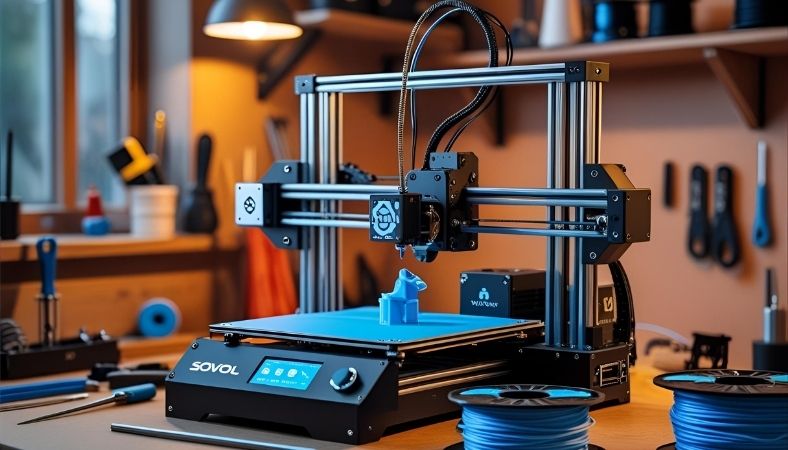
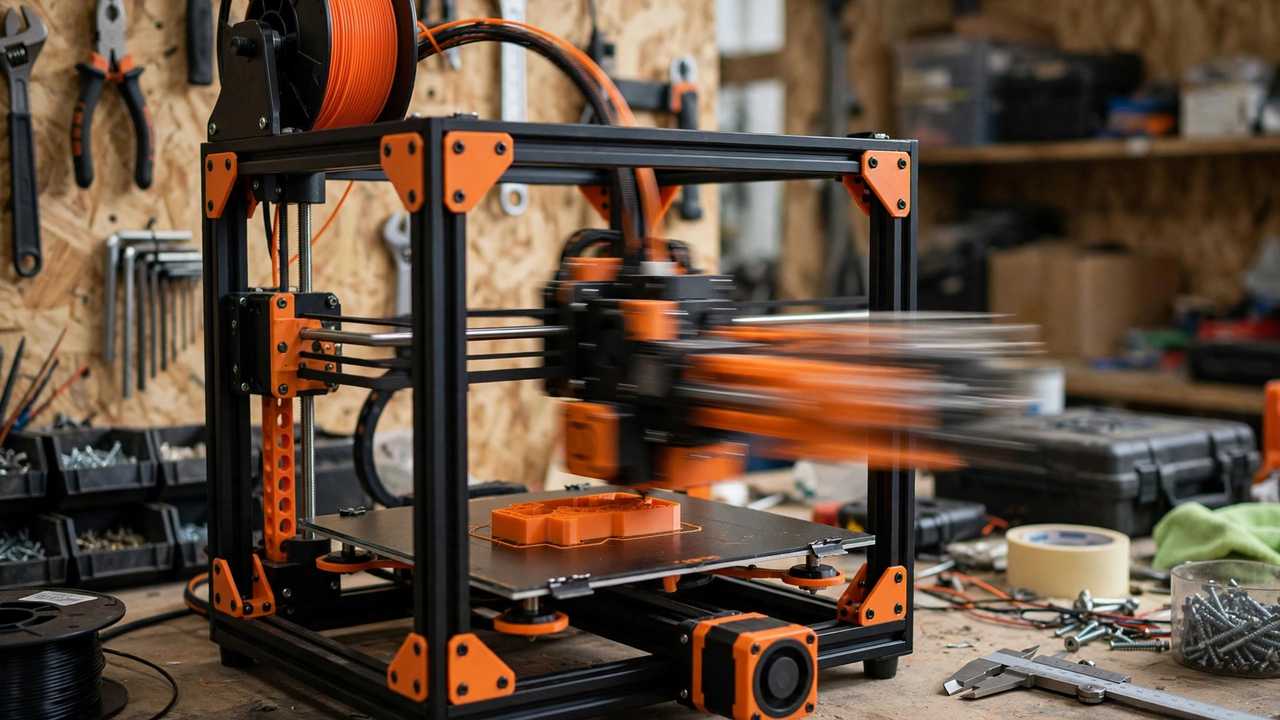
If you’re shopping for a fast, affordable 3D printer in Australia right now, the Elegoo Neptune 4 Pro review conversation keeps coming up — and for good reason. This open-frame bed-slinger promises 500mm/s print speeds, genuine Klipper firmware, and a 225 x 225 x 265mm build volume, all for AU$549 on Elegoo’s Australian store. That’s a spec sheet that would have sounded absurd at this price just a couple of years ago.
But specs on paper and plastic on the build plate are two different things. I’ve spent weeks putting the Neptune 4 Pro through its paces — fast PLA prototypes, finicky PETG parts, and even some ASA torture tests — to find out where this printer genuinely shines and where the budget compromises hide. Whether you’re upgrading from an old Ender 3 or buying your first serious machine, this Elegoo Neptune 4 Pro review covers everything: unboxing, setup, real print quality, the ribbon-cable versus Type-C revision question, and how it stacks up against the Creality K1 SE and Bambu Lab’s offerings in 2026.
Elegoo Neptune 4 Pro: Key Specifications
Before we get into the hands-on experience, here’s what Elegoo actually ships in the box:
- Build volume: 225 x 225 x 265mm — a touch bigger than the classic Ender 3 footprint
- Max print speed: 500mm/s with up to 20,000mm/s² acceleration
- Firmware: Klipper running on the stock board
- Extruder: Dual-gear direct drive
- Max nozzle temperature: 300°C
- Max bed temperature: 110°C
- Bed levelling: 121-point (11 x 11) automatic mesh
- Build plate: PEI magnetic spring steel
- Supported filaments: PLA, TPU, PETG, ABS, ASA, Nylon
- Connectivity: USB and wired LAN (no built-in Wi-Fi)
- Extras: Filament runout sensor, resume printing after power loss, segmented heatbed
- Weight: 8.9kg
- Australian price: AU$549 (ribbon-cable version, Elegoo AU store)
One important note for Australian buyers: Elegoo sells two hardware revisions — an older ribbon-cable version and a newer Type-C version. The AU$549 listing on the Australian store is the ribbon-cable variant. Parts and firmware differ between revisions, so confirm which one you’re buying before ordering spares. If you’re comparing with our broader roundup, check out the best 3D printers under $500 in Australia for context on where this sits in the market.
Unboxing and Setup: What to Expect
The Neptune 4 Pro arrives semi-assembled, which is standard for this class of printer. The base and gantry come as two main assemblies, and you’re essentially bolting them together, connecting a handful of clearly labelled cables, and running through the initial calibration. Budget around 30 to 45 minutes if you’ve built a printer before, or up to an hour if this is your first.
Elegoo includes the usual toolkit — hex keys, a spare nozzle, a small sample of PLA, and a USB stick with test files. The instructions are genuinely decent, with clear diagrams rather than the cryptic exploded views some budget brands still ship. One thing worth doing during assembly: take an extra five minutes to check that the frame is square and the eccentric nuts on the gantry wheels are adjusted properly. A surprising number of “my prints look bad” complaints trace back to a rushed assembly, not the printer itself.
Once powered on, the touchscreen walks you through input shaping calibration and the 121-point bed mesh. The auto-levelling is good, but remember the golden rule: automatic bed mesh still needs a correct Z-offset. Run a first-layer test print and dial the offset in by eye. Five minutes here saves hours of failed prints later.
Print Quality: Where the Klipper Magic Shows
Here’s where the Neptune 4 Pro earns its reputation. Klipper firmware with input shaping lets this printer sustain speeds that would turn a stock Ender 3 into a wobbly mess. Printing PLA at 250-300mm/s, the Neptune 4 Pro produces clean walls, sharp corners, and minimal ringing — genuinely impressive for a sub-AU$600 machine.
At the headline 500mm/s figure, you need realistic expectations. That maximum applies to infill and inner walls on simple geometries; pushing outer walls that fast will show artefacts on any printer in this class. In practice, most owners settle around 200-300mm/s for quality work, which is still roughly triple what the old generation of budget printers managed. A Benchy that took four hours on a 2021-era Ender 3 finishes in under 40 minutes here without looking like it was printed in a hurry.
Overhangs benefit from the printer’s aggressive dual part-cooling fans, and bridging is solid. The dual-gear direct drive extruder handles flexible TPU far better than the Bowden setups of old — you can actually print phone cases and gaskets without the filament binding up in the tube. If Klipper tuning interests you, our Klipper firmware guide walks through the key settings.
How It Handles Different Filaments
PLA is where this printer lives its best life. Fast, clean, and forgiving — PLA prints at high speed look excellent, and the PEI bed gives great adhesion with easy part removal once cooled.
PETG prints well too, though you’ll want to back the speed off to around 120-150mm/s and watch your retraction settings to keep stringing under control. The all-metal hotend reaching 300°C means temperature is never the limiting factor.
TPU works nicely thanks to the direct drive extruder. Stick to 95A hardness or firmer for the easiest experience; softer 85A filaments are doable but demand slow speeds and patience.
ABS and ASA are where the open-frame design shows its limits. You can print small ABS parts, but anything large will warp without an enclosure. Elegoo themselves recommend an enclosure for these materials. The 110°C bed helps, but ambient temperature control matters more. If ABS is central to your plans, factor an enclosure into the total cost — or look at an enclosed CoreXY machine instead.
Elegoo Neptune 4 Pro Review: vs The Competition
The budget speed-printer segment is crowded in 2026, so let’s see how the Neptune 4 Pro compares to its closest rivals.
Vs Creality K1 SE
The K1 SE is the most direct competitor: 600mm/s max speed, enclosed die-cast frame, and Creality’s Klipper-based OS. The enclosure gives it a real edge for ABS and ASA, and the CoreXY motion system handles high accelerations with less vibration than the Neptune’s bed-slinger design. On price, they’re in the same ballpark in Australia. Choose the K1 SE if you want an enclosed machine and print engineering materials; choose the Neptune 4 Pro if you prefer Elegoo’s ecosystem, want the larger community mod scene, or find it meaningfully cheaper on sale. We compared these two directly in our Creality K1 vs Bambu Lab P1P breakdown, which covers the same speed-focused segment.
Vs Bambu Lab A1 / A1 Mini
Bambu Lab remains the polish champion. The A1 series offers a slicker out-of-box experience, built-in camera, Wi-Fi, and the AMS multi-colour system — none of which the Neptune 4 Pro has. But you’ll pay more, and Bambu’s closed ecosystem isn’t for everyone. The Neptune 4 Pro appeals to tinkerers who want Klipper’s openness and don’t mind a bit of DIY.
Vs Older Ender 3 Models
This isn’t really a contest anymore. The Neptune 4 Pro outclasses any stock Ender 3 in speed, features, and ease of use. If you’re still running a 2020-era Ender 3, the upgrade in daily quality of life — auto-levelling, input shaping, direct drive — is enormous.
Strengths and Weaknesses: The Honest Summary
What We Like
- Genuine Klipper firmware with input shaping at a budget price
- Excellent PLA and PETG print quality at 200-300mm/s
- 121-point auto bed levelling that actually works
- Dual-gear direct drive handles TPU well
- 300°C hotend and 110°C bed cover most materials
- Filament sensor and power-loss resume included
- Strong community and aftermarket mod support
What Could Be Better
- Open frame limits ABS/ASA without an aftermarket enclosure
- No built-in Wi-Fi — wired LAN or USB only (many owners add a Raspberry Pi or use Elegoo’s app workarounds)
- No integrated camera for print monitoring
- Bed-slinger design moves the part in Y, which matters for tall prints at high acceleration
- 500mm/s is a maximum, not a practical everyday speed
- Two hardware revisions (ribbon-cable vs Type-C) complicate spare parts ordering
- Stock brass 0.4mm nozzle wears quickly with abrasive filaments — budget for a hardened nozzle if you print carbon-fibre or glass-filled materials
Elegoo Neptune 4 Pro Review Verdict: Who Should Buy It?
Buy it if: you want maximum speed per dollar, you’re comfortable with occasional tinkering, you mainly print PLA/PETG/TPU, and you like the openness of Klipper. It’s also a great second printer for a farm — cheap, fast, and reliable for batch PLA work.
Skip it if: you need a true plug-and-play experience (look at Bambu Lab), you primarily print ABS/ASA and don’t want to build an enclosure, or you need Wi-Fi and a camera out of the box.
Tips for Getting the Best From Your Neptune 4 Pro
- Nail the Z-offset first. Auto-levelling maps the bed; the offset sets the squish. Print a large single-layer square and adjust until the lines merge without ridges.
- Don’t chase 500mm/s on outer walls. Set outer walls to 150-200mm/s and let infill run fast. You’ll get 90% of the time saving with 100% of the quality.
- Dry your filament. High-speed printing is less forgiving of wet filament. A dry box or dryer makes a bigger difference on this printer than on slower machines.
- Upgrade the nozzle for abrasives. A hardened steel or ruby nozzle is cheap insurance if you print glow-in-the-dark, carbon-fibre, or wood-filled filaments.
- Consider an enclosure for ABS. Even a simple tent-style enclosure transforms ABS results on this machine.
- Keep the lead screw clean. Dust on the Z screw shows up as banding — a quick wipe and light lubrication every few months keeps layers consistent.
Long-Term Reliability: What Owners Report After 6+ Months
Spec sheets tell you what a printer can do on day one; owner communities tell you what it does on day 200. This Elegoo Neptune 4 Pro review draws on long-term owner feedback rather than launch-week impressions. Having followed Neptune 4 Pro owner groups for over a year, here’s the honest long-term picture.
The most commonly reported wear item is the PEI build plate coating — after several hundred prints, adhesion starts to fade in the centre where most prints sit. A light scuff with fine steel wool or a replacement plate (around AU$30-40) restores it. The PTFE tube in the hotend also degrades eventually, especially if you print a lot of PETG at higher temperatures — Capricorn tubing is a popular AU$15 upgrade.
Linear rods benefit from an occasional wipe and drop of light machine oil; neglected rods develop flat spots that show up as subtle banding. The touchscreen and mainboard have proven reliable, with few failure reports beyond the odd corrupted SD card (use a quality card, not the included one, for important prints).
Firmware updates deserve a mention: Elegoo has released several updates addressing early quirks, but the ribbon-cable vs Type-C split means you must download the correct version. Flashing the wrong revision’s firmware is the fastest way to brick an otherwise healthy printer — double-check before every update.
Where to Buy in Australia (and What About Warranty?)
Your main options for buying the Neptune 4 Pro in Australia:
- Elegoo’s official AU store (au.elegoo.com) — AU$549 for the ribbon-cable version, ships from within Australia in 3-7 business days. Direct manufacturer warranty support.
- Amazon Australia — sometimes matches or beats Elegoo’s price during sales events, with Prime shipping. Check the seller is reputable.
- Local 3D printing retailers — shops like 3D Printer Superstore and similar Australian resellers stock Elegoo machines with local support. Worth the small premium if you value phone support.
On warranty: Elegoo offers a standard 12-month warranty, and Australian Consumer Law provides additional protections — goods must be of acceptable quality regardless of what the warranty card says. Keep your receipt and document any faults with photos. For a AU$549 machine, the ACL’s “reasonable durability” expectation is firmly on your side for the first couple of years.
Frequently Asked Questions
Is the Elegoo Neptune 4 Pro good for beginners?
Yes, with a caveat. Assembly is straightforward and the auto-levelling removes the hardest part of old-school printers. But it’s less hand-holding than a Bambu Lab machine — expect to learn basic calibration and maintenance. If you enjoy that learning curve, it’s an excellent first printer.
What’s the difference between the ribbon-cable and Type-C versions?
They’re hardware revisions with different toolhead wiring, parts, and firmware. The ribbon-cable version is the older design currently listed at AU$549 on Elegoo’s Australian store. Always confirm your revision before ordering replacement parts or flashing firmware.
Can the Neptune 4 Pro print ABS?
Technically yes — the 300°C hotend and 110°C bed are capable. But the open frame means large ABS prints will likely warp without an enclosure. For occasional small ABS parts it’s fine; for regular ABS work, add an enclosure or choose an enclosed printer.
Does it have Wi-Fi?
No built-in Wi-Fi. It connects via USB or wired LAN. Many owners add wireless printing through a Raspberry Pi running OctoPrint or Klipper’s web interfaces.
How does it compare to the Bambu Lab A1 Mini?
The A1 Mini is more polished and beginner-friendly with Wi-Fi, a camera, and multi-colour options, but has a smaller build volume and costs more per cubic centimetre. The Neptune 4 Pro wins on raw value and openness; the A1 Mini wins on convenience.
For the latest Australian pricing and stock, check Elegoo’s official Australian store. Prices fluctuate with sales — the Neptune 4 Pro regularly drops below its AU$549 list price during promotional events.