Our best CAD software beginners roundup compares six free options for 3D printing in 2026.
Designing your own models is the moment 3D printing turns from a fun gadget into a genuinely useful skill. The good news: the best free CAD software for 3D printing costs nothing, and several options below are good enough that you may never pay for CAD at all. The catch is that the wrong starting point wastes weeks — some tools are delightful for an afternoon but limiting after a month, while others demand a learning curve that makes beginners quit before their first successful print.
This guide compares the six free options that matter — Tinkercad, FreeCAD, Blender, Fusion for personal use, Onshape Free and OpenSCAD — on learning curve, STL export and which prints each suits. Everything runs on an ordinary home computer, and everything is written for Australian beginners: what’s available locally, where to get help nearby, and which tools the local maker community actually uses.
What makes CAD software good for 3D printing?
Not every 3D design tool suits printing. A CAD program earns its place in your workflow when it does four things well: it exports clean STL or 3MF files your slicer can read; it works in real-world units (millimetres, so models don’t arrive 25.4× too big); it handles precise, dimensional parts through parametric modelling for anything that must fit an existing object; and it matches your learning budget — a professional tool you abandon after two frustrating evenings is worth less than a simple one you actually use.
Design software is only half the workflow. Once you have an STL, you’ll slice it before printing — our guide to setting up Cura for an Anycubic printer walks through exactly what happens next.
Best CAD Software Beginners: The 6 Best Free Options Compared
Here is the honest rundown of each tool — who it’s for, where it shines, and where it will frustrate you — ordered roughly from easiest to most demanding.
1. Tinkercad — the easiest starting point
Price: completely free, runs in your browser. Learning curve: an afternoon.
Tinkercad, made by Autodesk, is where most beginners should start. You drag basic shapes onto a workplane, combine them, punch holes through them, and export an STL. Within an hour you can design something genuinely useful: a cable clip, a drawer divider, a phone stand. Nothing to install, works on a Chromebook or an old laptop.
The trade-offs are predictable. Tinkercad isn’t parametric — changing a dimension later often means rebuilding rather than editing — and complex organic shapes are out of reach. Think of it as training wheels that actually get you somewhere: most people outgrow it in a few months, but the design intuition transfers directly to the more powerful tools below. It’s also the standard for kids, school projects and library workshops — many Australian libraries with 3D printers teach Tinkercad in their introductory sessions.
2. FreeCAD — the free parametric powerhouse
Price: free and open source, forever. Learning curve: moderate to steep — expect a week or two of real effort.
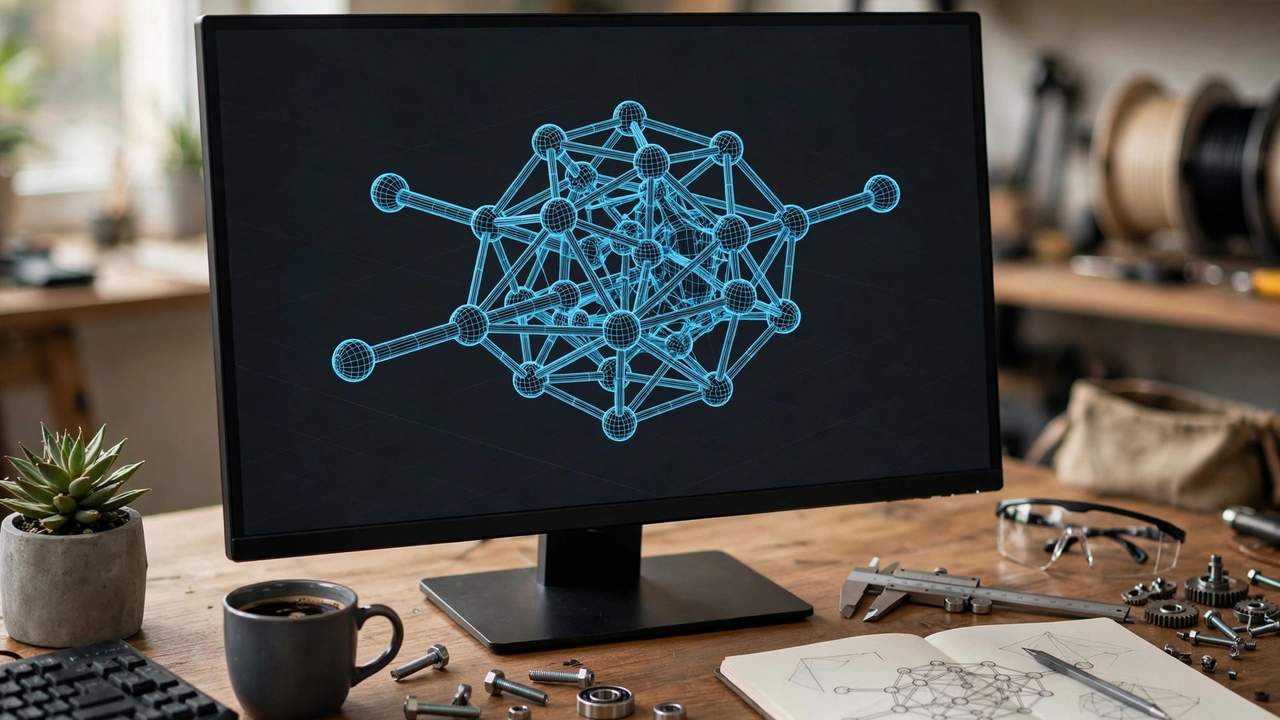
FreeCAD is the closest thing to free professional engineering CAD. It’s fully parametric: sketch a 2D profile, constrain it with exact dimensions, extrude it into 3D, and every dimension stays editable. Change a hole from 4 mm to 5 mm and the model updates. For functional prints — brackets, enclosures, adapters — this is the workflow that matters, and FreeCAD gives it to you free.
The honest downside is polish. The interface is less intuitive than commercial tools and beginners occasionally hit confusing behaviour. But it exports STL cleanly, runs on Windows, Mac and Linux, never phones home, and never locks your files behind a subscription. If you want real engineering CAD with no licence risk, FreeCAD is the answer — pair it with a structured beginner course rather than random videos and the learning curve becomes very manageable.
3. Blender — for organic and artistic models
Price: free and open source. Learning curve: steep at first, then rewarding.
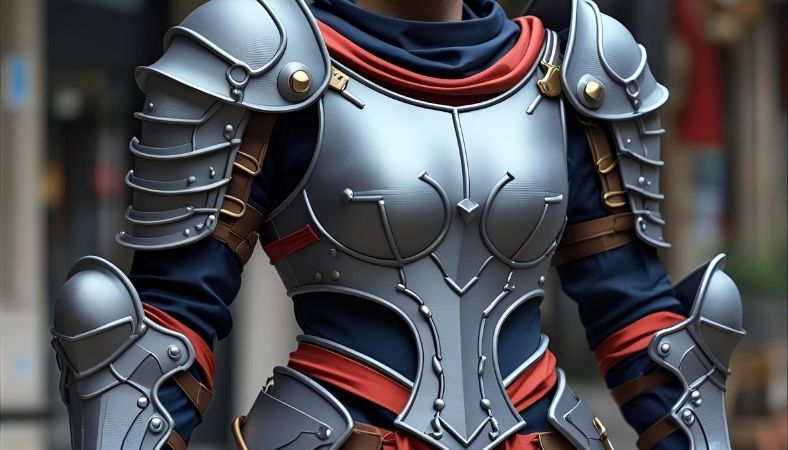
Blender is a professional-grade 3D creation suite used by animation studios — and completely free. For printing, its strength is organic, sculptural modelling: figurines, cosplay props, terrain, artistic pieces. If FreeCAD is a precision instrument, Blender is clay, and the sculpting tools are superb.
Two caveats. Blender is a mesh modeller, not a parametric one — typing “this wall must be exactly 3.2 mm” is awkward, so precise mechanical parts are painful. And the interface is famously dense; the first week feels like learning to fly a helicopter. Choose Blender if your heart is in artistic prints, and pair it with a parametric tool for functional parts. Many experienced makers use exactly that combination.
4. Fusion for personal use — professional feel, free for hobbyists
Price: free for qualifying personal, non-commercial use. Learning curve: moderate — easier than FreeCAD, harder than Tinkercad.
Fusion’s personal-use tier is the best free deal in CAD for hobbyists wanting a professional tool. It’s the same core software product designers use commercially: sketch-based parametric modelling, assemblies, even basic simulation and CAM. The workflow feels modern and coherent, and the tutorial ecosystem is enormous.
The catch is the licence. It’s free only for home-based, non-commercial projects, and Autodesk’s terms require hobbyist users to generate less than $1,000 USD per year from their making activities — the licence renews annually and you re-confirm eligibility each time. The free tier also caps simultaneously editable documents and removes advanced features like generative design. None of that matters much for a beginner printing brackets at home. But be clear-eyed: this is a generous free tier, not free software. Unlike FreeCAD or Blender, your workflow depends on Autodesk’s goodwill. Read the current terms on Autodesk’s Fusion for personal use page before committing.
5. Onshape Free — professional CAD in your browser
Price: free tier for non-commercial use. Learning curve: moderate — similar to Fusion.
Onshape is professional parametric CAD running entirely in a web browser — no installation, any operating system, files in the cloud so you can design on a library computer and print at home. Built by the team behind SolidWorks, the sketching and part modelling workflow is clean, fast and genuinely professional grade. For a beginner with a modest laptop, having the heavy lifting done on remote servers is a real advantage.
The free plan’s trade-off is privacy, not features: your designs are public by default. For hobby projects and learning exercises that’s usually fine. But if you’re designing something to sell or keep proprietary, the free tier isn’t appropriate. Also note the cloud dependency — no internet, no CAD. For most Australian home users on a decent NBN connection, that’s a non-issue.
6. OpenSCAD — CAD for people who think in code
Price: free and open source. Learning curve: easy if you code, baffling if you don’t.
OpenSCAD takes a different approach: instead of drawing, you write a script. A cylinder is one line of code; a bracket is a few dozen lines with variables you can tweak. Change one number and the whole model regenerates. For programmers it’s fast, precise and wonderfully version-controllable — parametric boxes, gears and enclosures are its natural territory. For everyone else, it’s a non-starter as a first tool: no visual dragging, and debugging means reading code. But if you already write code for a living, OpenSCAD may click faster than any mouse-driven CAD.
When judging the best CAD software beginners should prioritise parametric modelling and clean STL export.
Quick comparison of free CAD for 3D printing
- Tinkercad — Easiest (hours). STL: yes, one click. Best for: first models, kids, quick functional fixes.
- FreeCAD — Moderate-steep (1–2 weeks). STL: yes, via the Mesh workbench. Best for: precise functional parts, free forever.
- Blender — Steep (several weeks). STL: yes. Best for: figurines, cosplay, artistic models.
- Fusion (personal use) — Moderate (about a week). STL: yes. Best for: professional parametric workflow; non-commercial only.
- Onshape Free — Moderate (about a week). STL: yes. Best for: browser CAD on modest hardware; designs are public.
- OpenSCAD — Easy for coders. STL: yes. Best for: programmers designing parametric parts.
Every option exports STL without paying anything — that’s the baseline that makes this list viable. If a tool ever paywalls STL export, it doesn’t belong in a beginner’s workflow.
Best CAD Software Beginners: Which Free Option Should Australians Choose?
Never designed anything? Start with Tinkercad this weekend. Design something small and useful — a hook, a spacer, a cable tidy — export the STL and print it. That first finished object teaches more than any tutorial. Move on when it starts feeling limiting, usually after a month or two.
Want functional parts and to stay free forever? Learn FreeCAD. No licence risk, no cloud dependency — which matters in regional Australia with patchy internet, or if you simply don’t want your hobby subject to a corporation’s terms of service.
Want the smoothest professional experience for non-commercial projects? Take Fusion’s personal-use tier. It’s the fastest path from beginner to designing complex assemblies, and the skills transfer to commercial CAD if you ever go pro. Keep designs backed up in a neutral format like STEP.
Into miniatures, cosplay props or artistic prints? Learn Blender — it’s the lingua franca of Australia’s active cosplay and tabletop gaming scene. Pair it with FreeCAD or Fusion for the occasional functional bracket.
Keep exported STLs organised from day one — one folder per project with the source file and the mesh saves enormous confusion later. And before your first original design, see how these free options stack up against paid ones in our best 3D modelling software for 3D printing roundup.
Every pick in this best CAD software beginners guide is free for hobbyist use.
Getting your first model from CAD to the printer
- Export at the right scale. Set CAD units to millimetres before exporting — wrong export units cause nine out of ten “wrong size” surprises.
- Check the mesh. Most slicers flag non-manifold edges automatically. Tinkercad exports are almost always clean; FreeCAD and Blender have repair tools for the rest.
- Orient for strength. Flat faces down, overhangs under roughly 45°, layer lines running across the direction of greatest stress.
- Slice with a default profile first. Start with your slicer’s default for your material and change one variable at a time — our Cura setup guide for Anycubic printers covers the settings that matter.
- Print small first. Test a section or scale down before committing to a six-hour print. Filament is cheap; failed long prints are demoralising.
Learn with Australia’s maker community
Most capital cities have community workshops — makerspaces and hackspaces — with 3D printers, laser cutters and experienced members happy to look over your first CAD files. Brisbane has long-running spaces like HSBNE, Adelaide has Fab Lab Adelaide, Perth has the Perth Artifactory, and Melbourne and Sydney each have several active maker groups, many running open nights for visitors.
Public libraries are the sleeper option: a growing number of Australian libraries offer 3D printers and free introductory CAD workshops, and they overwhelmingly teach Tinkercad — another good reason to start there. Check your council library’s website for “maker” or “3D printing” programs. Between library workshops, makerspace open nights and the active Australian 3D printing groups on Facebook and Reddit, a beginner here is never far from someone who can answer “why won’t this export?” at 9 pm on a Tuesday.
Frequently asked questions
What is the easiest free CAD software for 3D printing?
Tinkercad. It runs in your browser, takes an afternoon to learn, and exports STL files any slicer can print — the best starting point for complete beginners and kids.
Is Fusion really free for hobbyists?
Yes, with conditions. Autodesk offers Fusion for personal use free to qualifying individuals doing home-based, non-commercial projects with hobbyist revenue under $1,000 USD per year. The licence renews annually and removes some advanced features.
Can I sell 3D prints I designed in free CAD software?
It depends on the licence. Models designed in Tinkercad, FreeCAD, Blender or OpenSCAD are yours to sell. Fusion’s personal-use tier and Onshape’s free plan are non-commercial only.
Do I need a powerful computer for free CAD software?
Not necessarily. Tinkercad and Onshape run in a browser on modest laptops. FreeCAD and Blender run fine on most computers from the last five years.
Which free CAD is best for precise mechanical parts?
FreeCAD or Fusion for personal use — both are parametric, so exact dimensions stay editable and the model updates when you change them.
STL or 3MF — which should I export?
STL works everywhere and is the safe default. 3MF is newer and better — smaller files plus colour and settings data — and most modern slicers support it.