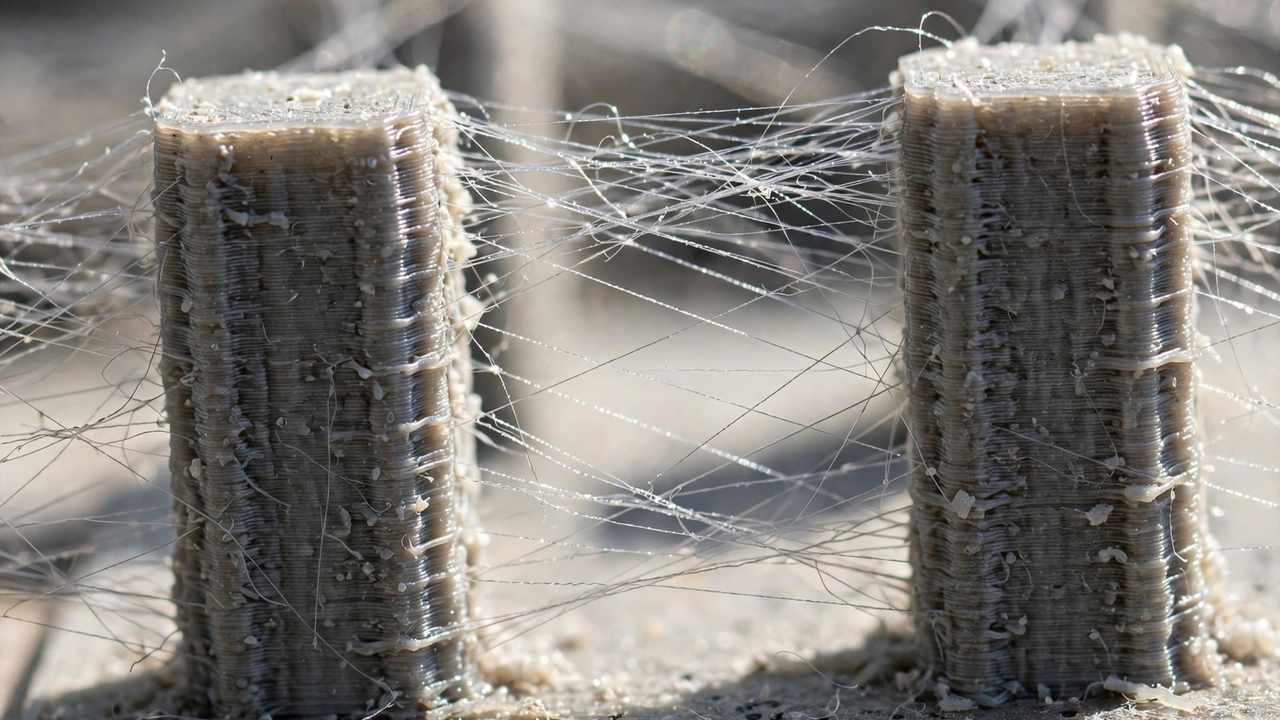
This fix stringing 3D prints guide walks through every cause and cure, slicer by slicer.
Few things are more annoying than a print that comes out structurally perfect but covered in fine, hair-like wisps of plastic. If you’ve ever pulled a model off the bed and spent minutes picking at cobwebs with tweezers, you’ve met stringing — the most common cosmetic defect in FDM 3D printing.
Work through the calibration steps below in order — temperature first, then retraction, then travel behaviour, then filament condition — and the vast majority of stringing disappears. We’ll cover Cura, PrusaSlicer and OrcaSlicer throughout, with starting values for Bowden and direct-drive machines.
What is stringing, and why does it happen?
Stringing — also called oozing or “hairs” — happens when molten plastic leaks out of the nozzle while the print head is travelling between two printed areas. The nozzle drags a thin thread of plastic across the gap, which cools into a fine wisp. It shows up worst on prints with lots of separate features: text, lattices, multiple small parts printed at once, or anything with the nozzle hopping between islands.
Inside the hotend, molten plastic is under pressure, and that pressure doesn’t vanish the instant the extruder stops pushing — plastic keeps oozing briefly. Retraction relieves the pressure by pulling filament back; lower temperature makes the plastic thicker and less runny; faster travels give ooze less time to stretch into threads. Stringing is what happens when those defences are weaker than the ooze.
One critical insight before you touch any setting: wet filament can override every other fix. Filaments like PETG, TPU and nylon absorb moisture from the air; when that water hits the hot nozzle it flashes to steam, and the expanding steam forces plastic out regardless of your retraction settings. If you’ve been tuning for an hour with no improvement, suspect moisture first — it’s the most skipped step in stringing troubleshooting.
Fix Stringing 3D Prints: The Four Main Causes
Nearly every case of stringing traces back to one of four causes. Diagnose before you treat — changing settings at random wastes filament and teaches you nothing.
1. Retraction settings are too weak
Retraction is your primary weapon. When the nozzle finishes one feature and travels to the next, the extruder pulls the filament back a set distance at a set speed, dropping the pressure in the melt zone so nothing oozes during the move.
The right values depend on your extruder type. Bowden machines — where a long PTFE tube separates the extruder motor from the hotend, as on many Anycubic Kobra and older Ender models — need more retraction because the tube itself flexes and stores pressure. Start around 5–6 mm at 40–45 mm/s. Direct-drive machines — where the extruder sits right on top of the hotend, like the Ender 3 V3 series and most newer printers — need far less: start around 0.8–1.5 mm at 30–40 mm/s. Going too far on direct drive can pull molten plastic into the cold heat break and cause jams, so restraint matters there.
2. Nozzle temperature is too high
Heat makes plastic runny; runny plastic strings. Many beginners print PLA at 210–215 °C because a default profile said so, when their spool would print beautifully — and far more cleanly — at 195–200 °C. As a rule, stringing worsens as temperature climbs, so find the lowest temperature that still gives strong layer bonding.
Typical working ranges: PLA 190–210 °C, PETG 225–240 °C (print at the low end to fight its naturally stringy behaviour), ABS/ASA 235–250 °C. Every brand differs slightly, so treat these as starting points. Drop in 5 °C steps and watch the strings thin out — but stop if layers start separating or walls look under-extruded. A temperature tower, covered below, finds this sweet spot in a single print.
3. Travel moves are too slow or too long
Even with perfect retraction, a slow travel move gives residual ooze time to stretch into a visible thread. Raising travel speed to 150–200 mm/s (within your printer’s mechanical limits) means the nozzle crosses gaps before ooze can form. Also look at how your slicer routes travels: enabling combing (Cura) or avoid crossing perimeters (PrusaSlicer/OrcaSlicer) keeps travel moves inside the model where any ooze is hidden, rather than dragging threads across visible outer walls.
4. The filament is wet
Moisture is the great imitator — wet filament causes stringing, popping sounds, rough surfaces and weak parts all at once. In Australia’s humid coastal cities and tropical north, an open spool can absorb enough moisture in days to ruin prints. If stringing appeared suddenly on a spool that used to print cleanly, or you hear faint hissing from the nozzle, dry the filament before touching slicer settings. Typical drying: PLA 4–6 hours at around 50–55 °C in a filament dryer or food dehydrator; always follow the temperature on the spool label, and never use a household oven — they run hot and uneven and can melt the spool.
Fix Stringing 3D Prints: Step-by-Step Settings Guide
Follow this order. Each step builds on the last, and skipping ahead is how people end up chasing their tails.
Step 1 — Dry your filament. Before changing a single setting, dry the spool you’re having trouble with, then store it in a sealed bag or dry box with desiccant. This eliminates the one variable that can defeat all other tuning. If you don’t own a dryer, a cheap food dehydrator works — many Australian makers started exactly that way.
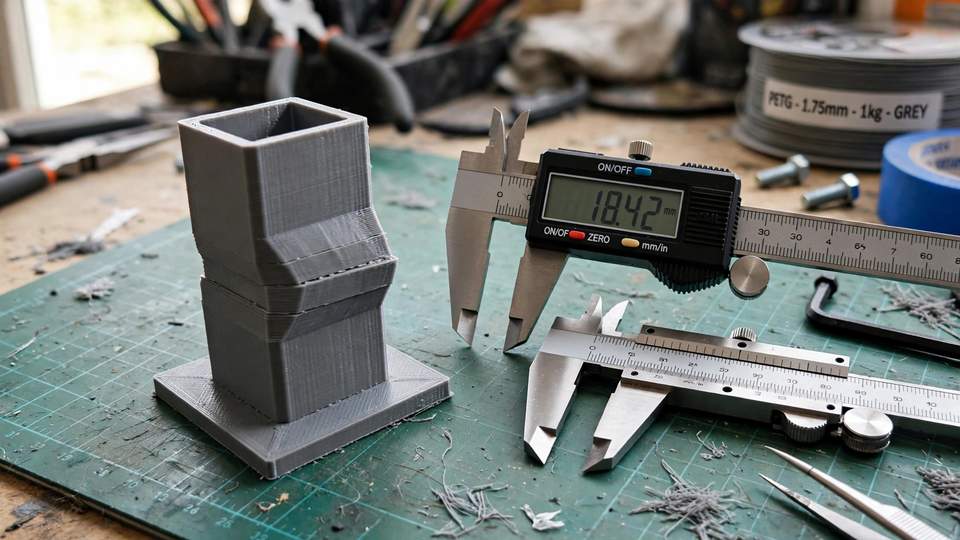
Step 2 — Print a temperature tower. A temperature tower prints the same small test model in bands, each at a different nozzle temperature (typically 220 °C down to 180 °C for PLA). One print shows you exactly where stringing stops and where layer adhesion starts suffering. OrcaSlicer has temperature towers built into its calibration menu; in Cura, install the Calibration Parts plugin from the Marketplace. Pick the lowest clean temperature with solid layer bonding.
Step 3 — Print a retraction tower. With temperature locked in, print a retraction tower that varies retraction distance across its height. Start from the baseline for your extruder type (5–6 mm Bowden, ~1 mm direct drive) and adjust in 0.5 mm steps. Choose the smallest distance that eliminates strings — more retraction isn’t always better, and excess retraction on direct-drive machines risks heat-break jams.
Step 4 — Tune travel behaviour. Set travel speed to 150–200 mm/s if your printer handles it smoothly, enable combing / avoid-crossing-perimeters, and consider a small Z-hop (0.2–0.4 mm) — but only if the nozzle is visibly scarring top surfaces, since Z-hop itself can add strings on some machines.
Step 5 — Fine-tune with wipe and coasting. Wipe drags the nozzle a short distance at the end of a printed segment to break the thread cleanly; coasting stops extrusion slightly before the end of a line, letting residual pressure finish the job. Enable one at a time with small values.
Step 6 — Save a filament profile. Once a spool prints cleanly, save every value as a named profile in your slicer. Different brands — even different colours — string differently, and re-tuning from scratch each time is a waste.
If you’re new to slicer tuning generally, our Cura setup guide for Anycubic printers covers the baseline profile you should calibrate from.
Retraction tuning is the fastest way to fix stringing 3D prints without changing materials.
Stringing fix settings by slicer
The concepts are identical everywhere; only the menu locations differ. Here’s where to find each control.
Cura
Retraction lives under Travel → Enable Retraction, with Retraction Distance and Retraction Speed beneath it. Set Travel Speed under the Speed section, enable Combing Mode (try “Within Infill” first, then “All” if strings persist on outer walls), and find Z Hop When Retracted under Travel. Coasting is under Experimental → Enable Coasting. If you’re on an Anycubic Kobra 2, our Kobra 2 Pro beginner setup guide walks through the machine-specific baseline these tweaks build on.
PrusaSlicer
Retraction is under Printer Settings → Extruder 1 → Retraction (Length and Lift Z). Travel speed is under Print Settings → Speed → Travel, and Avoid crossing perimeters is under Print Settings → Layers and Perimeters. Wipe is a checkbox in the same Extruder 1 panel.
OrcaSlicer
OrcaSlicer puts retraction under Printer → Extruder → Retraction and travel speed under Speed → Travel. Its standout feature for this job is the Calibration menu in the top toolbar, which generates temperature towers, retraction tests, flow-rate calibrations and more with two clicks — no plugins needed. If stringing is your main frustration, OrcaSlicer’s calibration workflow is the fastest route to a fix on any printer, including popular models like the Ender 3 V3 KE.
If wisps remain after these steps to fix stringing 3D prints, dry your filament — moisture is the hidden culprit.
Stringing by material: PLA, PETG, TPU and ABS
Different plastics string for different reasons, and the fix emphasis shifts accordingly.
- PLA — the easiest. Usually fixed by temperature (aim low, 195–205 °C) plus modest retraction. If PLA strings badly, suspect wet filament or a worn nozzle before exotic settings.
- PETG — stringy by nature. Print at the low end of its range (225–235 °C), dry it religiously (it’s very hygroscopic), and accept that a few wisps are normal — PETG strings clean off easily with a quick pass of a heat gun.
- TPU — flexible filament compresses in the extruder, making retraction less effective. Print slowly (20–30 mm/s), minimise retraction distance on direct drive, dry thoroughly, and keep travel moves short where possible.
- ABS/ASA — less prone to stringing than PETG but sensitive to temperature swings. Print in an enclosure, keep temperatures stable, and tune retraction the same way as PLA.
A heat gun deserves a special mention: for PETG especially, a two-second pass melts remaining wisps without damaging the print. It’s a cleanup step, not a fix — but it turns “acceptable” into “perfect” on materials that will never be 100% string-free.
When stringing isn’t really stringing
Sometimes what looks like stringing has a different cause. Check these impostors:
- Worn or partially clogged nozzle. A damaged nozzle tip extrudes inconsistently, leaving blobs and threads that mimic stringing. Brass nozzles wear measurably after a few kilograms of abrasive filament — a $3 replacement is cheaper than another tuning session.
- Over-extrusion. If flow rate is too high, excess plastic has to go somewhere, and it goes out the nozzle during travels. Calibrate e-steps and flow rate (OrcaSlicer’s calibration menu does both) before blaming retraction.
- Spider-web fine wisps on an otherwise perfect print. Ultra-fine wisps with correct settings are often just the filament’s nature — especially PETG. Clean them with a heat gun and move on.
Quick troubleshooting flow
Use this decision tree when stringing appears mid-project and you need the fastest path to clean prints:
- Did it print cleanly before on this spool? Yes → dry the filament. Fixed? Done.
- Strings on every travel, consistent and fine? → Retraction distance too low. Increase in 0.5 mm steps.
- Strings persist despite adequate retraction? → Temperature too high. Drop 5 °C at a time via a temperature tower.
- Strings only between widely separated features? → Travel too slow. Raise toward 150–200 mm/s and enable combing.
- Fuzz dragged across visible outer surfaces? → Enable avoid-crossing-perimeters; add small Z-hop only if the nozzle scars tops.
- Stringing plus popping, rough surfaces, weak layers? → Wet filament, full stop. Dry it.
- Everything tuned and still stringy? → Check nozzle wear and calibrate flow rate — you’re likely fighting an impostor.
For the hardware maker’s perspective on the same cause-and-fix relationships, see Qidi’s official stringing fix guide.
Frequently asked questions
What causes stringing in 3D printing?
The four main causes are retraction settings that are too weak, nozzle temperature that’s too high, slow travel speeds, and wet filament. Wet filament is the most commonly overlooked — moisture flashing to steam in the nozzle can override every other setting.
What retraction settings should I start with?
For Bowden extruders (long PTFE tube, e.g. many Anycubic Kobra models), start at 5–6 mm distance at 40–45 mm/s. For direct-drive extruders (e.g. Ender 3 V3 series), start at 0.8–1.5 mm at 30–40 mm/s. Fine-tune with a retraction tower from there.
Does drying filament really fix stringing?
Often, yes — dramatically. PETG, TPU and nylon absorb moisture from the air, and wet filament strings no matter how good your retraction settings are. Dry PLA 4–6 hours at around 50–55 °C, then store it sealed with desiccant.
Why does my PETG string no matter what I do?
PETG is naturally stringier than PLA. Print at the low end of its temperature range (225–235 °C), keep it dry, and accept that a few wisps are normal — they melt away in seconds with a heat gun.
Can Z-hop make stringing worse?
It can. Z-hop lifts the nozzle during travel, which adds time for ooze to form and can drag threads upward. Only enable it (0.2–0.4 mm) if the nozzle is visibly scarring top surfaces; otherwise leave it off.
How do I test stringing fixes without wasting filament?
Print calibration models: a temperature tower and a retraction tower use only a few grams each. OrcaSlicer generates both from its built-in Calibration menu; Cura needs the free Calibration Parts plugin from the Marketplace.