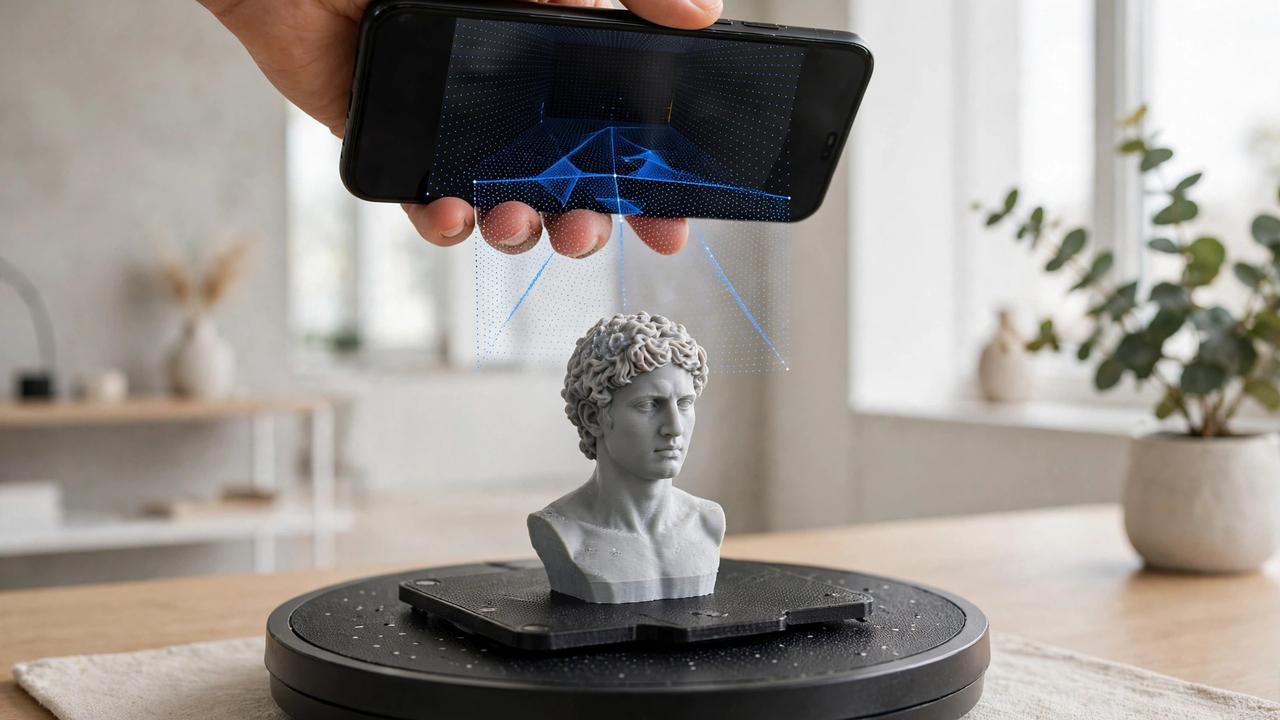
Your phone is a 3D scanner. Modern smartphones — with LiDAR on Pro iPhones and increasingly clever photogrammetry on everything else — can capture real-world objects as 3D models good enough to 3D print. The catch: the app stores are flooded with scanners that overpromise. This guide compares the best free 3D scanner apps in 2026, with honest assessments of what “free” actually gets you.
One critical distinction upfront: capturing is often free, but exporting printable files (STL, OBJ) sometimes isn’t. We’ll flag exactly where each app’s free tier ends, because a scan you can’t export is just a pretty picture.
How Phone 3D Scanning Works
Two main technologies power phone scanning:
- Photogrammetry: Take dozens of photos circling an object; software reconstructs 3D geometry from the overlapping images. Works on any phone with a decent camera. Slower, but surprisingly accurate for objects.
- LiDAR: iPhone Pro models (12 Pro and later) have a LiDAR sensor that measures depth directly. Faster captures, great for rooms and large objects, less detail on small items than good photogrammetry.
- Gaussian splatting / NeRF: Newer AI-based methods that create stunning visual captures. Important caveat: splats are not meshes — they must be converted before 3D printing, and conversion quality varies.
For scan-to-print workflows, photogrammetry remains king. For room capture and AR, LiDAR rules. Know which you need before choosing.
The Contenders: Best Free 3D Scanner Apps in 2026
1. Polycam — Best Overall
The most widely used phone scanning app in 2026, and for good reason: it bundles photogrammetry, LiDAR capture, room scanning, and Gaussian splats in one polished interface. The workflow from “I see something” to usable model has the lowest friction in the business.
Free tier reality check: Capturing is free, but the free plan exports glTF only (up to 150 images per model). Printable formats — STL, OBJ, FBX — require the Basic plan at around $150/year (or $30/month). For casual scanning and sharing, free is fine. For scan-to-print, budget for Basic or look elsewhere.
Best for: First-time scanners, rooms and outdoor scenes, anyone who values ease over control. Available on iOS and Android.
2. Scaniverse — Best Truly Free Option
From Niantic Spatial, Scaniverse is the enthusiast community’s favourite free app — because the classic on-device processing mode, exports included, stays fully free. No subscription wall between you and your STL. Processing happens on the device, so results appear in moments without cloud queues.
The limitation: it’s LiDAR-first, meaning the best results need an iPhone Pro (12 Pro or later). Photogrammetry mode exists for non-LiDAR devices but isn’t its strength. If you have a Pro iPhone and want free, unlimited-ish scanning with real exports, start here.
Best for: iPhone Pro owners who want genuinely free scanning with usable exports. Beginners testing whether scanning is for them.
3. KIRI Engine — Best for Android / Most Experimental
The strongest object scanner on Android, and the most technologically adventurous: cloud photogrammetry plus Gaussian splatting and neural reconstruction modes that handle shiny and featureless surfaces better than classic photogrammetry. Since version 4.0, the free tier exports without a weekly cap — the remaining limit is 150 photos per scan.
Pro (around $80/year) lifts the photo cap and adds priority processing. For Android users, this is the default recommendation — iOS users should compare it against Scaniverse and Polycam for their specific needs.
Best for: Android users, product photography, tricky surfaces, anyone who wants cutting-edge reconstruction tech.
4. RealityScan — Best for Game-Engine Workflows
Epic Games’ RealityScan (the evolution of RealityCapture) is free for students, educators, and individuals or companies under $1M annual revenue — which covers virtually all hobbyists. Above that threshold it’s a steep $1,250/seat/year, but you won’t hit that printing terrain for your D&D group.
Version 2.0 added AI background masking and capture heatmaps showing where you need more photos; 2.1 added distortion visualization. It’s particularly strong for photo captures destined for game engines and has a loyal following among wargaming terrain creators who scan real-world textures and objects.
Best for: Hobbyists wanting pro-grade photogrammetry free, game-asset workflows, texture/object capture for printing.
5. Qlone — Best for Consistent Small Objects
Qlone’s unusual approach — an AR mat you print out, then photograph the object on — gives remarkably consistent results for small items. Free tier is limited; full unlock runs up to ~$30 one-time depending on options. The mat requirement is fiddly, but for education settings or repeated small-object scanning (think: scanning a part to reproduce it), the consistency is valuable.
Best for: Education, repeatable small-object scans, users who value consistency over flexibility.
Free 3D Scanner Apps: Head-to-Head Free Tier Comparison
| App | Platforms | Free Exports STL/OBJ? | Key Limitation |
|---|---|---|---|
| Polycam | iOS, Android | No — glTF only on free | Printable formats need Basic (~$150/yr) |
| Scaniverse | iOS (LiDAR best) | Yes — fully free | Best on iPhone Pro; weaker photogrammetry |
| KIRI Engine | iOS, Android | Yes — no weekly cap | 150 photos/scan on free tier |
| RealityScan | iOS, Android | Yes (under $1M revenue) | Pro features aimed at studios |
| Qlone | iOS, Android | Limited | Needs printed mat; ~$30 to unlock |
Tips for Better Phone Scans
- Light is everything. Bright, diffuse, even lighting. Overcast daylight is ideal. Harsh shadows and glossy highlights destroy reconstructions.
- Overlap generously. 60–80% overlap between consecutive photos. Move slowly around the object; more angles beat fewer.
- Include scale. Photos can’t tell the software how big anything is. Put a ruler or coin in frame, or use LiDAR for true scale.
- Avoid shiny and transparent. Photogrammetry hates mirrors, chrome, and glass. A light dusting of matte spray (or flour in a pinch) makes the impossible scannable.
- Keep the background simple. Busy backgrounds confuse reconstruction. A plain sheet behind small objects works wonders.
- Export the highest quality offered. You’ll clean up in software anyway; starting from the best source data matters enormously.
From Scan to Print: The Cleanup Step
Raw scans are never print-ready. Expect to:
- Remove the background and isolate the object
- Fill holes — scans always have gaps where the camera couldn’t see
- Remesh/decimate — scans are often millions of triangles; reduce for slicing
- Make it watertight — slicers need manifold geometry
Meshmixer (free, discontinued but still available), Blender (free, steep learning curve), and Windows 3D Builder (basic repairs) all handle this. For a deeper dive into phone-based scanning workflows, see our 3D scanning with your phone guide.
The Verdict
- iPhone Pro + want free: Scaniverse. Genuinely free with real exports.
- Android + want free: KIRI Engine. Best object scanning on Android, generous free tier.
- Want easiest + don’t mind paying later: Polycam. Best UX; budget $150/yr when you’re ready to print scans.
- Want pro photogrammetry free: RealityScan. Serious reconstruction power at hobbyist prices (free).
Start free, learn the craft of capture (lighting and technique matter more than app choice), and only pay when you’ve hit a specific free-tier wall. Every one of these free 3D scanner apps rewards good technique more than good hardware.
Desktop Alternatives (When Your Phone Isn’t Enough)
Phone apps are convenient, but dedicated approaches still win for serious work. Before jumping to desktop software, squeeze everything you can out of the free 3D scanner apps above — for casual scan-to-print, they’re genuinely enough:
- Meshroom (free, open-source): Desktop photogrammetry with far more control than any phone app. Needs an NVIDIA GPU for practical speeds, but the results can rival commercial software.
- COLMAP (free, open-source): The research-grade toolkit — GUI, command-line, and Python workflows. COLMAP 4.2 added learned feature extraction and AMD GPU support. For developers and advanced hobbyists building scan pipelines.
- 3DF Zephyr Free: Commercial software with a genuinely useful free tier (up to 50 photos). More guided than Meshroom, less intimidating than COLMAP.
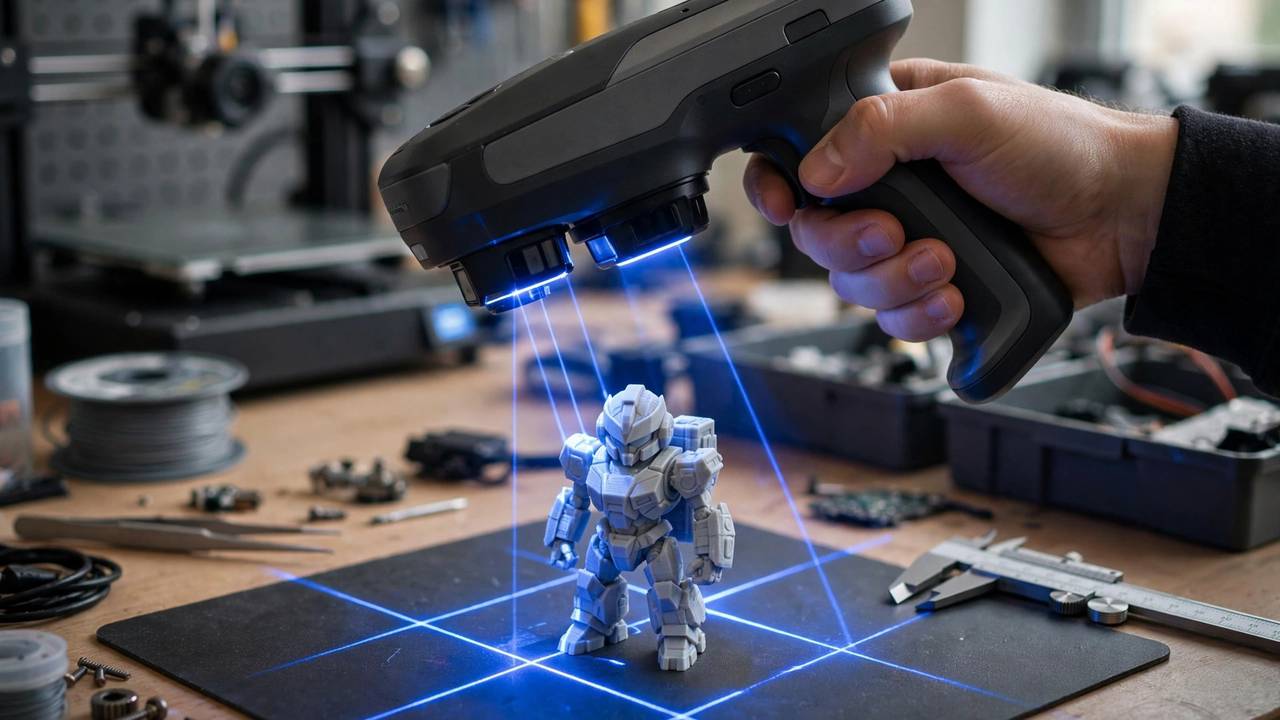
- Dedicated 3D scanners: Revopoint and Creality’s scanner lines start around $300–600 AUD and outperform phones for small objects. Worth it if you scan regularly.
The phone-to-desktop pipeline is common: capture on the phone (convenient), process on the desktop (powerful). KIRI Engine and Polycam both offer web-based processing that splits the difference.
Scanning People (and Pets)
Scanning humans is its own skill: subjects must hold still for 60–90 seconds (harder than it sounds — breathing moves the chest), even lighting is critical, and hair is photogrammetry’s nemesis (fine, shiny, moving). Tips: have the subject sit, brace their head, use a plain background, and take twice as many photos as you think you need. Pets are harder still — scan sleeping animals only, and accept that you’ll be cleaning up the mesh extensively.
Printed lithophanes from face scans make extraordinary gifts — a scan-to-lithophane pipeline (scan → clean mesh → lithophane generator) produces backlit portraits that look store-bought.
Export Formats Explained: Which Do You Actually Need?
- STL: The 3D printing standard. Geometry only, no colour/texture. Every slicer reads it. If you’re printing, this is what you want.
- OBJ: Geometry plus materials/textures. Better for archival and for workflows heading to Blender or game engines.
- glTF/GLB: The modern web/AR standard. Great for sharing and viewing, less useful for slicing (though some slicers now import it).
- PLY: Common in research and point-cloud workflows. MeshLab’s native tongue.
- USDZ: Apple’s AR format. Useful for previewing scans in your space via iPhone, not for printing.
For scan-to-print, STL is the target. If your app only exports glTF free (Polycam), you can convert glTF→STL in Blender or online converters — an extra step, but it keeps the free tier viable for printing.
Privacy: What Happens to Your Scans?
Worth considering before scanning your home: most free apps process scans in the cloud, meaning your data transits their servers. Polycam and KIRI Engine use cloud processing by default; Scaniverse’s on-device mode keeps everything local. If you’re scanning sensitive spaces, prefer on-device processing and check each app’s privacy policy. For scanning objects (not spaces), the concern is minimal — but it’s good to know where your data goes.
Combining Scans with CAD: The Power Workflow
The most powerful scan-to-print workflow isn’t pure scanning — it’s scan plus CAD. Scan an object for its organic shape, import into Fusion 360 or Tinkercad, and model precise functional features (mounting holes, threads, mating surfaces) onto the scanned base. You get the best of both: the scan captures complex curves you’d never model by hand, and CAD gives you the precision scans lack.
Example: scan a broken dishwasher clip, import the mesh, model a reinforced replacement tab in CAD aligned to the scan, print in PETG. Total time: an hour. Result: a functional repair part that would take a day to model from scratch and measurements alone.
The honest truth about phone scanning in 2026: the hardware in your pocket is capable of remarkable captures, but technique matters more than technology. The makers getting stunning scan-to-print results aren’t using secret apps — most of the free 3D scanner apps above handle the capture half of that loop. The winners control lighting, overlap generously, and clean meshes carefully. Download Scaniverse or KIRI Engine today (both free), find an interesting object with matte surfaces, and run your first capture this afternoon. The learning starts with doing.
Finally, remember that scanning is a means, not an end. The goal isn’t a perfect digital twin — it’s a printable, usable model. Beginners obsess over capture quality; experienced users obsess over cleanup speed. A decent scan cleaned efficiently beats a perfect scan that sits on your phone for six months. Capture, clean, print, iterate. The loop is the skill.
Frequently Asked Questions
Can I 3D print from a phone scan?
Yes, with cleanup. Phone scans need hole-filling, background removal, and remeshing before slicing. Apps like Scaniverse, KIRI Engine, and RealityScan export printable formats on their free tiers; Polycam’s free tier exports glTF only.
Do I need LiDAR for 3D scanning?
No. Photogrammetry (multi-photo reconstruction) works on any decent phone camera and often gives better small-object detail than LiDAR. LiDAR excels at rooms and large objects and gives true scale.
What is the best completely free 3D scanner app?
Scaniverse (for iPhone Pro owners) and KIRI Engine (for Android) offer the most capable genuinely-free tiers with printable exports. RealityScan is also free for hobbyists under $1M revenue.
Why can’t I export STL from Polycam free?
Polycam reserves STL/OBJ/FBX export for paid plans (Basic ~$150/yr). The free tier exports glTF only. It’s a business model choice — the capture tech is free, the print pipeline is paid.
Are phone scans accurate enough for functional parts?
For organic shapes and visual replicas, yes. For precision mechanical parts (±0.1mm), no — phone scans typically achieve ±0.5–2mm accuracy. Measure critical dimensions with calipers and remodel functional features in CAD.
New to scanning hardware too? Our phone scanning guide covers technique in depth.