An OctoPrint setup is one of the best upgrades you can give a 3D printer. Instead of ferrying SD cards back and forth, you get a web dashboard for your printer: start prints from your couch, watch progress on a webcam, get a notification when a print finishes or fails, and build silky timelapses automatically. This guide walks through the whole process on a Raspberry Pi — the hardware you need, flashing OctoPi, the first-run wizard, the plugins actually worth installing, and how to access it away from home without opening your network to the entire internet.
What Is OctoPrint, Exactly?
OctoPrint is free, open-source software that turns a small computer — usually a Raspberry Pi — into a print server for your 3D printer. Your printer plugs into the Pi over USB, and the Pi serves a web interface you can open from any device on your network. Upload a G-code file, hit print, and the Pi streams it to the printer while giving you live temperatures, progress, and camera feeds. The project lives at octoprint.org, where you’ll find downloads, documentation, and the full plugin repository.
Why bother? A few reasons makers swear by it:
- No more SD card shuffle. Slice on your computer, send straight to the printer over Wi-Fi.
- Remote monitoring. Check on a 12-hour print from work or the shops via webcam.
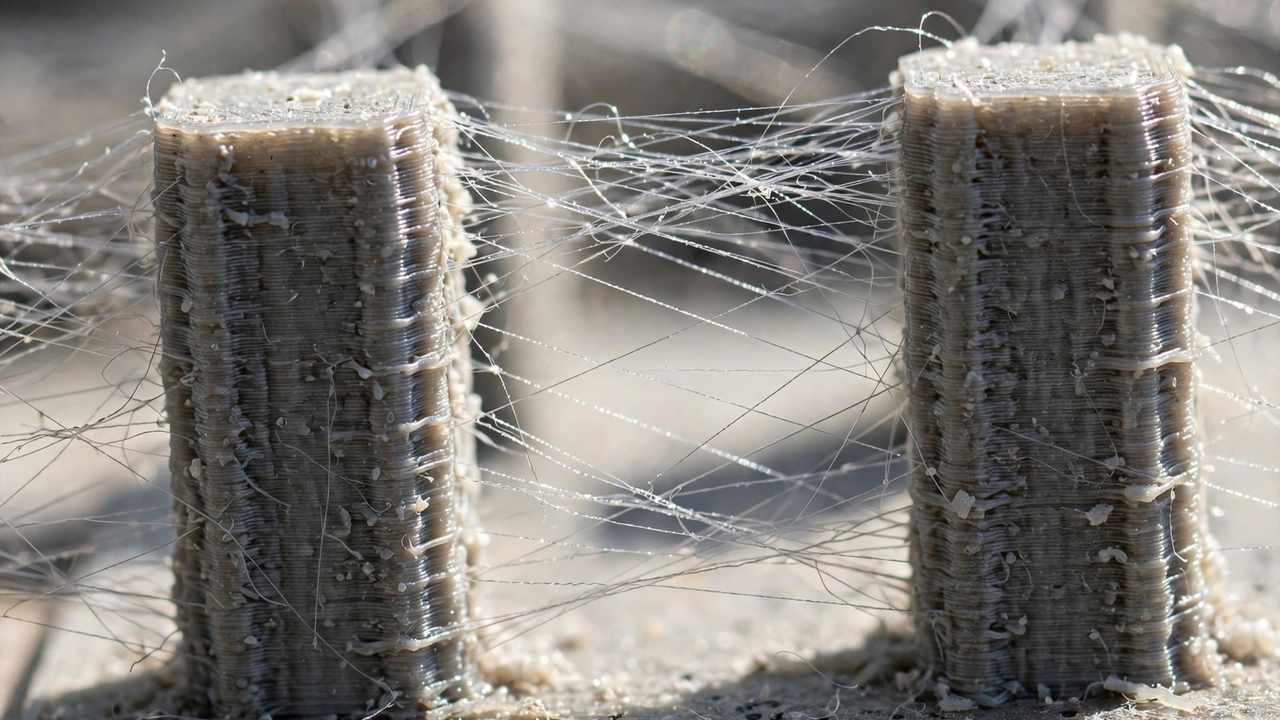
- Failure detection. Plugins can spot spaghetti failures and pause the print before it wastes half a spool.
- Timelapses. Automatic, gorgeous print timelapses with almost zero effort.
- Control and automation. Turn lights on, power the printer down after a print, get push notifications — all extensible through plugins.
One honest caveat: OctoPrint talks to traditional firmware like Marlin beautifully. If you’re running Klipper, the Klipper ecosystem’s own interfaces (Mainsail or Fluidd) are usually the better fit — though OctoPrint can work alongside Klipper too. We compare the firmware question in depth in our Klipper vs Marlin guide.
OctoPrint Setup: What Hardware You Need
The classic OctoPrint rig is simple. Here’s the shopping list:
Raspberry Pi
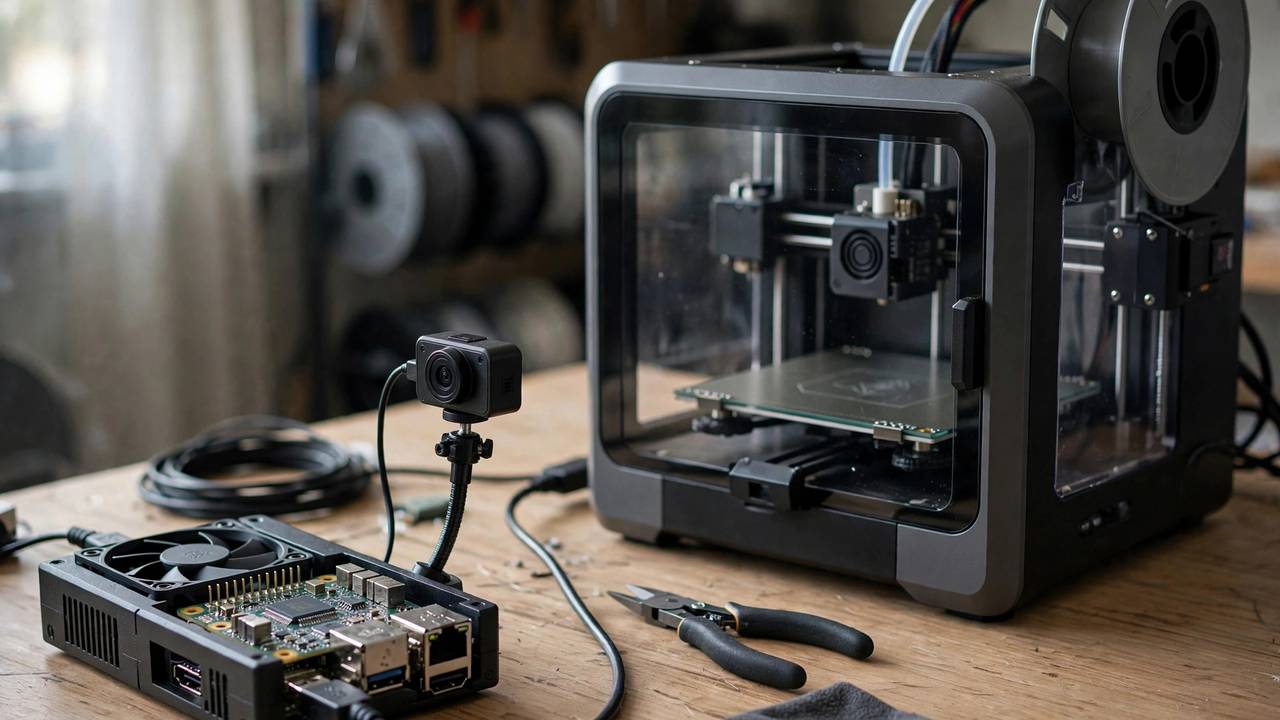
A Raspberry Pi 4 (2GB or more) handles OctoPrint comfortably, and a Pi 5 is even better — particularly if you want a smooth webcam stream alongside printing. Since OctoPi 1.1.0 (released May 2025), the Pi 5 is officially supported, so there’s no reason to avoid it for a new build. In Australia, a Pi 5 4GB board runs around A$190 from local sellers such as Pakronics — prices move, so check before you buy. A Pi 4 is cheaper if you find one and is still perfectly capable for a single printer.
What to avoid: the Pi Zero W (original) struggles with webcam streaming plus printing. The Pi Zero 2 W can work for basic setups, but the price gap to a Pi 4/5 is small enough that the bigger board is the saner choice.
The rest of the kit
- Official Raspberry Pi power supply. This matters more than people think. Underpowered phone chargers cause brownouts mid-print — the Pi 5 wants the official 27W USB-C supply. Don’t cheap out here.
- MicroSD card, 16GB or larger. A decent A1/A2-rated card from a real brand. OctoPi doesn’t need much space, but card quality affects reliability.
- USB cable to your printer. A short, good-quality data cable (not a charge-only cable — this trips up beginners constantly). Most printers use USB-B, mini, or micro; some newer ones use USB-C.
- Ethernet or Wi-Fi. Wi-Fi is fine for most setups; ethernet is more reliable if your printer lives far from the router.
- Webcam (optional but recommended). Any USB webcam works; the Raspberry Pi Camera modules work too. This is what makes remote monitoring and timelapses possible.
- A case. Print one, obviously — it’s a 3D printer accessory. There are thousands of Pi mounts and cases designed to bolt onto printer frames.
An OctoPrint setup pays for itself the first time you cancel a failed print from your phone.
Flashing OctoPi with Raspberry Pi Imager
OctoPi is a ready-made operating system image: Raspberry Pi OS plus OctoPrint pre-installed and configured. The easiest way to get it onto an SD card is Raspberry Pi Imager, the Foundation’s free flashing tool.
Step by step
- Download Raspberry Pi Imager from raspberrypi.com/software and install it on your computer.
- Insert your microSD card (via an adapter if needed). No need to format it first — Imager handles that.
- Choose OS: click “Choose OS” → “Other specific-purpose OS” → “3D printing” → “OctoPi”. Pick the stable build.
- Open the settings (the gear icon, or Ctrl+Shift+X) before writing:
- Set your Wi-Fi network name (SSID), password, and country (AU).
- Set a strong password for the system user pi — and leave the username as “pi”. OctoPi expects that username; changing it breaks things.
- Enable SSH (handy for troubleshooting later).
- Optionally set the hostname (default
octopiis fine) and timezone.
- Choose storage — select your SD card — then click Write. It takes 5–10 minutes.
- Boot the Pi. Slot the card in, connect the printer via USB, power up, and wait 2–3 minutes for first boot.
- Open
http://octopi.localin a browser on the same network. If that doesn’t resolve, find the Pi’s IP address in your router’s device list and use that instead.
If the Pi never appears on the network, the usual suspects are: wrong Wi-Fi password, 5GHz-only network issues (use 2.4GHz), or a corrupt flash — reflash and double-check the settings.
Back up your OctoPrint setup SD card image — corrupted cards are the number one cause of downtime.
The First-Run Setup Wizard
The first time you open OctoPrint’s web interface, a setup wizard walks you through the essentials. It only takes a few minutes:
- Create your OctoPrint admin account. This is separate from the Pi’s system login — it’s the username and password for the web interface. Pick something strong, especially if you’ll ever expose this beyond your home network.
- Online connectivity check. Allow it — OctoPrint uses this to check for updates and power some plugins.
- Printer profile. Enter your build volume (X, Y, Z in mm), nozzle diameter, and number of extruders. Getting the bed size right matters for the built-in controls and some plugins.
- Done. You’re looking at the dashboard: temperature graph, connection panel, file list, and webcam (once configured).
Connecting to your printer
Hit Connect in the sidebar. OctoPrint usually auto-detects the serial port; the baud rate is typically 115200 or 250000 depending on your printer’s firmware. If it won’t connect, try the other common baud rate before assuming something is broken. Once connected, you’ll see live hotend and bed temperatures on the graph — that’s the moment it feels real.
Upload a G-code file (drag and drop works), press print, and watch your printer start moving with no SD card in sight. Slice as normal — Cura, PrusaSlicer, and OrcaSlicer all export the same G-code files.
OctoPrint Setup: Essential Plugins Worth Installing
OctoPrint’s plugin ecosystem is huge, which is both a blessing and a trap. Start with a few proven ones rather than installing thirty things at once.
- Bed Visualizer. Turns your bed mesh data into a 3D visualisation so you can actually see what your bed is doing. Invaluable when dialling in levelling.
- PrintTimeGenius. Dramatically better print time estimates than the stock guesswork, using analysis of your actual G-code.
- Exclude Region. Lets you cancel just one part of the bed mid-print when running multiple objects — save the rest of the print instead of scrapping everything.
- OctoEverywhere. Secure remote access plus AI failure detection (more on remote access below).
- Themeify. Purely cosmetic — dark mode for your dashboard. Your eyes will thank you during late-night print watching.
Install plugins from the built-in Plugin Manager. One caution: each plugin is another thing that can break or slow the interface — add them one at a time and actually use each before adding the next.
Webcam and Timelapses
A ten-dollar USB webcam transforms OctoPrint from “convenient” to “indispensable”. Plug it into the Pi and the bundled camera support should pick it up — most common webcams work out of the box, though you may need to tweak settings for your specific model.
Timelapses are the fun part. OctoPrint can render them in a few modes:
- Timed. A frame every N seconds. Simple, reliable, shows the whole print including the print head moving around.
- On Z change. A frame per layer change — smoother-looking results, classic “object growing out of nothing” effect.
- On print head parked (Octolapse-style). The head moves aside for each frame, producing those buttery professional timelapses. This needs the Octolapse plugin and some tuning per printer.
Position the camera with a clear view of the bed and decent lighting — a cheap LED strip helps enormously — plus a stable mount. A wobbly camera ruins timelapses and makes failure-spotting harder.
Remote Access — Do It Safely
Here’s the section most guides gloss over, and it matters. OctoPrint has no built-in authentication strong enough to face the raw internet, and port-forwarding your OctoPrint instance directly is genuinely dangerous — automated scanners find open OctoPrint servers quickly, and a compromised one can overheat your printer.
Safe options, easiest first:
- OctoEverywhere (plugin). Gives you secure remote access through their relay service plus AI print-failure detection. There’s a free tier that covers basic remote monitoring. This is the path of least resistance.
- Tailscale or another mesh VPN. Install Tailscale on the Pi and your phone/laptop, and your devices form a private encrypted network — you reach OctoPrint as if you were home, with no open ports at all. Free for personal use and very maker-friendly.
- Traditional VPN into your home network. More setup, same idea: nothing exposed publicly.
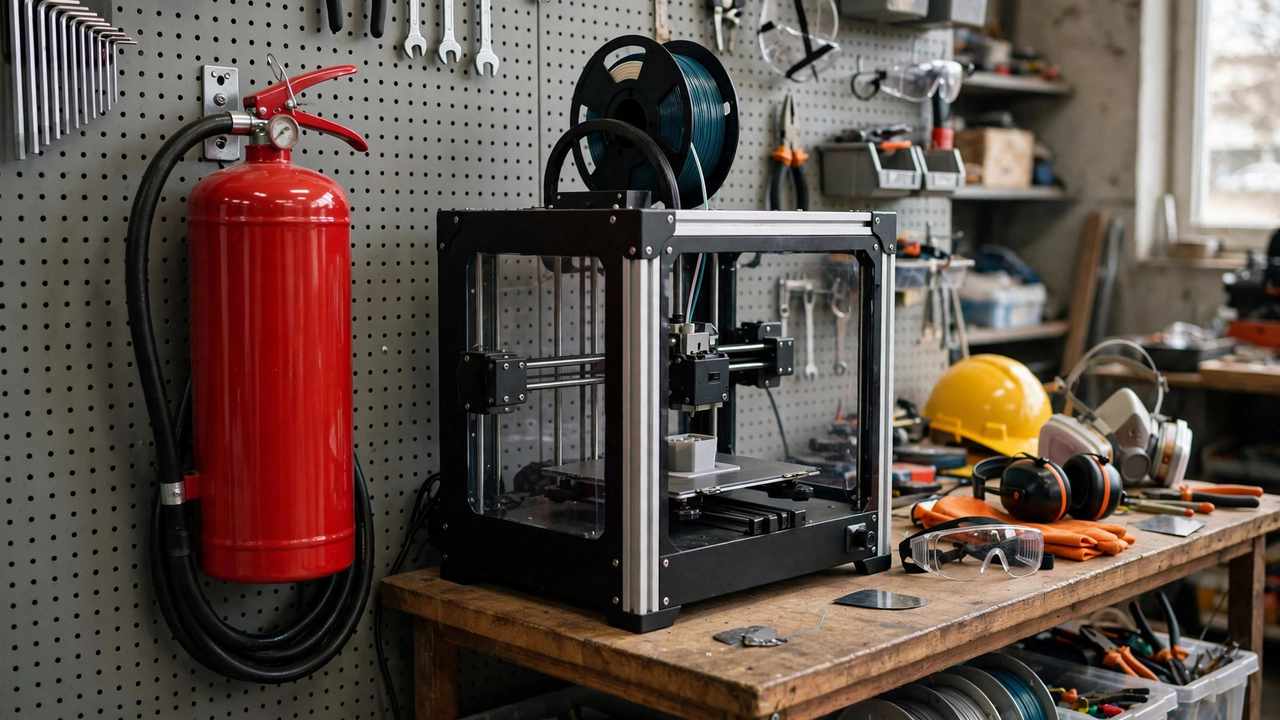
What not to do: forward port 80/443/5000 from your router to the Pi, use default passwords, or assume “nobody will find it”. They will. Treat remote printer access with the same seriousness as the printer’s fire safety — because a hijacked printer with heaters is a fire risk, not just a prank risk.
OctoPrint vs Klipper Interfaces
Quick detour for the Klipper-curious: Klipper’s usual web interfaces are Mainsail and Fluidd, which are purpose-built for Klipper and feel snappier for that firmware. OctoPrint works with Klipper too (via a plugin), but if you’re going all-in on Klipper, most people end up on Mainsail or Fluidd. OctoPrint remains the best choice for Marlin-based printers and for anyone who values its enormous plugin library. Our Klipper firmware guide digs into the firmware side of this decision.
Troubleshooting Common Issues
- octopi.local doesn’t resolve. Use the IP address from your router instead. Some Windows networks are flaky with .local names — installing Apple’s Bonjour Print Services usually fixes it.
- Printer won’t connect. Check the USB cable is a data cable, try the other baud rate (115200 ↔ 250000), and make sure no other software (like a slicer) has the serial port open.
- Undervoltage warnings (lightning bolt icon). Your power supply is inadequate. Get the official Pi supply — this is the cause of a huge fraction of “random” OctoPrint flakiness.
- Webcam not showing. Try a different USB port, check the camera streamer settings, and confirm the camera works on a regular computer first.
- Print stutters or pauses. Usually the Pi struggling — close other services, use a better SD card, or step up to a Pi 4/5. Printing over a painfully slow Wi-Fi link can also cause micro-stutters.
- Timelapse rendering fails. Usually a storage or memory issue on smaller Pi boards; timed mode is the least demanding.
Frequently Asked Questions
Can I run OctoPrint on a Raspberry Pi 5?
Yes. Since OctoPi 1.1.0 (May 2025), the Pi 5 is officially supported and works well — it’s actually a great choice for a new build, especially if you want smooth webcam streaming alongside printing. Flash it the same way via Raspberry Pi Imager.
Is OctoPrint free?
Yes — OctoPrint itself is free and open source. Your costs are the Raspberry Pi, power supply, SD card, and optionally a webcam. Some companion services for remote access (like OctoEverywhere’s higher tiers) have paid plans, but basic remote monitoring has free options.
Can I control multiple printers with one OctoPrint install?
Not reliably with a single instance — OctoPrint is designed around one printer per server. The common approach is one Pi (or one OctoPrint instance in Docker) per printer. There are multi-instance setups and tools like OctoFarm for managing fleets, but start with one printer per Pi.
Is it safe to leave my printer running while monitored by OctoPrint?
Monitoring helps, but it doesn’t replace basic fire safety: thermal runaway protection enabled, smoke detector nearby, quality power supply, and never leaving a printer running in a way you’re uncomfortable with. A camera lets you check in — it doesn’t extinguish fires. Read our 3D printer fire safety guide before running long unattended prints.
Do I still need an SD card in my printer with OctoPrint?
No. Once the printer is connected to the Pi over USB, OctoPrint streams the G-code directly. You can leave the SD slot empty. (Keep a card handy for firmware updates, though.)
What’s the difference between OctoPi and OctoPrint?
OctoPrint is the software — the web interface and print server. OctoPi is a ready-to-flash operating system image for Raspberry Pi that has OctoPrint pre-installed and configured. You can also install OctoPrint manually on other computers, but OctoPi on a Pi is the standard path.